 Start Here
  Platform Guide
  Billing & Account
  Connect & Integrate
  Troubleshooting & Help
  Developers & API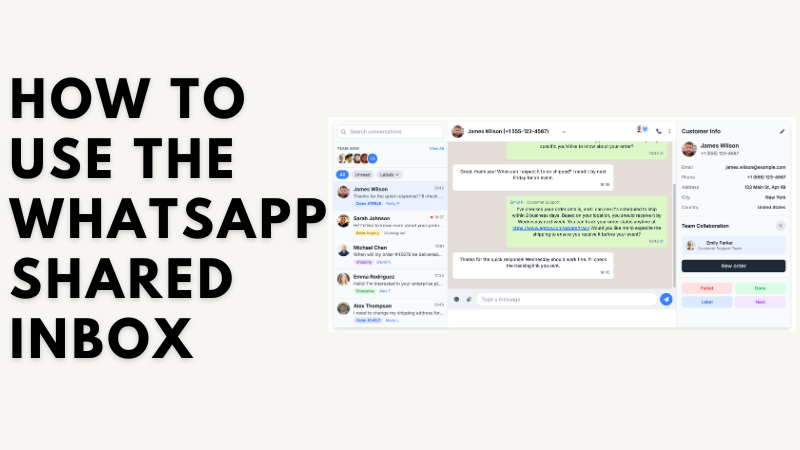
eGrow supports two ways to connect WhatsApp:
1. Coexistence (scan a QR code and keep the WhatsApp Business app). This method is official and completely legal. However, it comes with the app's own limits and known troubles — WhatsApp may block sending when you message many customers, campaigns are restricted, and disconnections are more frequent.
2. Recommended — a dedicated number without the WhatsApp app. Connect a number that is NOT installed in any WhatsApp app directly to eGrow, and answer & receive all messages from eGrow Web and the eGrow mobile app. This is the most stable method for automations, campaigns and high message volumes, and it is what we always advise.
The WhatsApp Shared Inbox lets your entire team handle customer conversations from one place — no more forwarding screenshots or switching phones.
Where to Find It
Go to your eGrow dashboard → Conversations
You’ll see all incoming and outgoing WhatsApp messages in real-time.
What You Can Do in the Shared Inbox:
Reply to messages from one unified dashboard
Assign chats to specific team members
Add labels to organize by product, status, or urgency
See who’s handling which chat — no overlap
View full conversation history with each customer
Send quick replies or saved templates instantly
Why It Matters
Avoid duplicated replies
Respond faster
Keep your communication organized
Never miss a message again
Pro Tip: Use the inbox with labels + automation to manage high volumes during sales or campaigns.
Need help setting it up? Contact support or your eGrow account manager for assistance.
Noch keine Kommentare. Seien Sie der Erste, der kommentiert!